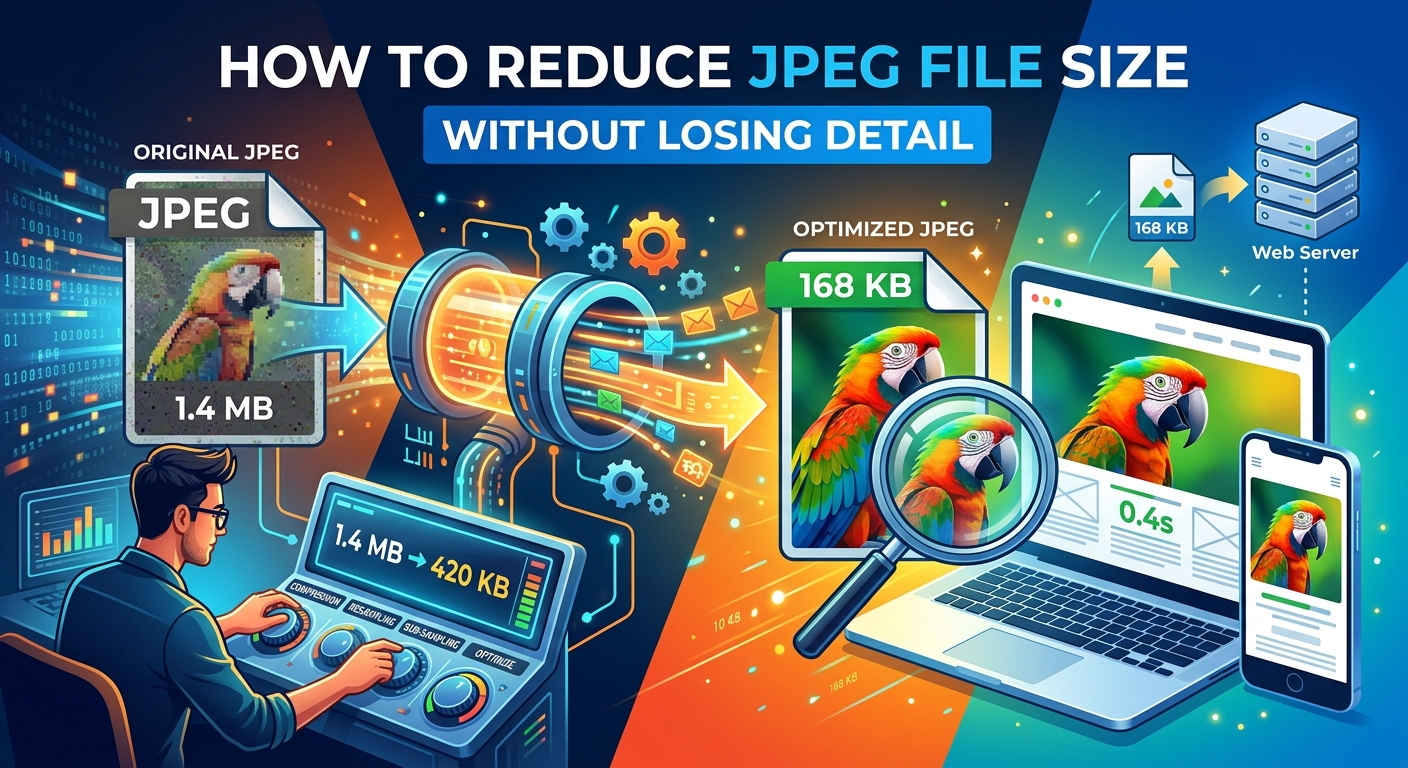
A photo can look perfect in your editor and still make a webpage feel sluggish. Uploading the full camera file often means sending visitors thousands of pixels they will never see. The better approach is to trim the dimensions, compress carefully, and check whether the smaller version still looks right where it will appear.
You do not need to chase the smallest possible file. You need a JPEG that loads efficiently while keeping the details your readers notice. That might mean sharp eyes in a portrait, clear stitching on a product, or natural texture in a landscape. Here is a repeatable way to find that balance before publishing.
Your Smaller Image Checklist
- Keep the original image as your untouched master.
- Resize for the space the image actually occupies.
- Lower compression quality in small steps.
- Compare fine detail and smooth backgrounds before uploading.
- Check the published image on desktop and mobile.
Understand What You Can Preserve
JPEG usually uses lossy compression. This means it discards some image information to reduce the file size. You cannot promise that every original detail survives, but you can often make a file much smaller without a visible difference at its intended display size.
Resizing also removes information. A smaller image has fewer pixels, which is useful when your source file is much larger than the space available on your website. Trouble starts when you shrink it below the dimensions needed for that space. The browser then stretches it, and the result can look soft.
Think of the goal as preserving useful visible detail. A visitor viewing a photo inside a blog post does not need the same file as someone downloading it for a large print. Choose settings for the website experience.
Measure the Space Before Resizing
Start with the image placement. Is it a full-width banner, an article photo, or a small product card? Check the largest width at which that placement appears. A desktop layout may show a wider image than a phone, but some mobile layouts also use nearly the full screen.
Display width and image width are related, but they are not always identical. High-density screens can benefit from more image pixels than the layout width measured in CSS pixels. For example, an image displayed at 700 CSS pixels wide may look sharper with a 1,400-pixel source on a screen with a pixel density of two.
That is a starting point, not a requirement for every image. Your subject, layout, and acceptable file size still matter. If your website supports responsive images, provide several widths so the browser can select an appropriate version.
Crop Before You Set the Final Dimensions
Remove unwanted edges before resizing. A tighter crop may make the subject easier to see while reducing the total number of pixels. Keep the intended aspect ratio in mind. A banner crop and a square product image need different framing.
Preserve the aspect ratio when resizing unless you are deliberately cropping. Changing width and height independently can stretch faces or distort products. Avoid enlarging a small source image to meet an arbitrary target. Extra pixels cannot restore detail that was never there.
Follow a Compression Process You Can Repeat
Work from an untouched original each time you create a new candidate. Repeatedly editing and saving a JPEG can introduce additional losses. Keep your master file separate from the versions you prepare for the website.
The sequence below helps you change one thing at a time. That makes it easier to understand whether a softer result came from resizing or stronger compression.
-
Save a master copy. Put the original somewhere separate from your upload folder. Give working versions clear names so you can identify the image width and compression setting later.
-
Crop and resize the working image. Match the intended placement and allow enough pixels for the screens you expect to serve. Record the dimensions and file size of this resized version.
-
Create a moderately compressed candidate. You can compress JPG in your browser, then download the result for comparison. If quality controls are available, begin with a moderate setting rather than the most aggressive option.
-
Inspect the downloaded result. Open it beside the resized reference. Look for blur around important features, block patterns in textured areas, and rough edges around strong contrasts. Check smooth backgrounds for patchy color or visible bands.
-
Adjust and compare again. If the result looks clean, try a slightly stronger setting. If visible damage appears, return to the previous acceptable version. Generate each candidate from the same resized reference.
-
Test the selected file in the webpage. View it at the actual display size. Check both a desktop and a phone layout before deciding that the image is ready.
Quality numbers are not universal. A setting of 80 in one application may produce a different result from 80 in another. Treat the number as a control within that tool, not a guarantee of appearance or file size.
Inspect the Details That Reveal Compression Damage
Start at the size visitors will actually see. If the image looks clear there, inspect it at 100% zoom, where one image pixel maps to one screen pixel in your viewer. This closer view helps you spot damage that might become visible on a larger placement.
Extreme magnification can make minor flaws look alarming. Use it to locate problems, but make the final decision at realistic viewing sizes. A tiny imperfection that appears only at 400% zoom may have no practical effect on an article image.
- Faces and hair: Check eyelashes, hair strands, and skin texture for smearing or an unnatural smoothness.
- Product edges: Inspect seams, labels, and outlines for softness or speckled halos.
- Detailed surfaces: Look at grass, foliage, brickwork, and fabric for block patterns or lost texture.
- Smooth backgrounds: Check skies, shadows, and studio backdrops for bands or blotchy transitions.
- Strong color boundaries: Look for color bleeding around saturated objects against contrasting backgrounds.
Avoid judging different candidates at different zoom levels. Keep their viewing size consistent, and compare the same area in each file. If possible, switch between images without changing their position. Small differences become easier to notice.
Compare File Savings Against Visible Changes
Record the file size of each candidate rather than relying on a tool's compression percentage alone. The percentage tells you how much changed relative to the input. The downloaded size tells you what you are preparing to upload.
Suppose your resized reference is 240 KB. A 150 KB candidate saves about 38%. A 105 KB candidate saves about 56%. The smaller file is useful only if its appearance still meets the needs of the placement.
Example Results From a Resized Article Photo
| Version | File Size | Inspection Result | Decision |
|---|---|---|---|
| Resized Reference | 240 KB | Clear texture and clean edges | Keep for comparison |
| Moderate Compression | 150 KB | No distracting change at display size | Suitable for publishing |
| Stronger Compression | 105 KB | Visible smearing in fine texture | Return to the clearer version |
These figures illustrate a decision process. They are not expected results for every photo. Detailed scenes may need larger files than simple backgrounds at the same dimensions. There is no single file size that suits every website image.
Check What Your Website Actually Publishes
Your upload may not be the final file visitors receive. Some content management systems resize or recompress images automatically. Inspect the published page because a good local export can look different after another processing step.
Check whether the page serves an appropriately sized version. A small thumbnail should not require the full banner image. If your platform provides responsive image settings, use them to match downloads to the available space.
Watch for unexpected cropping, stretched proportions, and softness on high-density screens. If the image looks blurry online but clear locally, compare the served dimensions with the display dimensions before increasing JPEG quality. The problem may be an undersized variant.
Metadata can also contribute to file size. Removing unnecessary camera information may save space without changing visible pixels, though the savings vary. Keep attribution or rights information when you need it. Preserve useful color profile information or confirm that colors remain correct after export.
Keep a Clear Image and a Manageable File
The best stopping point is the smallest candidate that still serves the image's purpose. Product photos need enough detail to help buyers assess the item. Portraits need natural faces. Decorative backgrounds may tolerate stronger compression.
Once you find a reliable setting, use it as a starting point for similar images. Inspect each result before publishing, especially photos with fine texture or smooth gradients. Keep your original files so you can create new sizes later without rebuilding them from compressed copies.
A few deliberate checks can remove a lot of unnecessary weight. Measure the placement, resize carefully, compress in stages, and compare the result on the page. Your visitors get a lighter download, and the details that make the image useful stay clear.